Wake Up An Animal Redeem Codes in the Shop
Find the premium code field, type carefully, and verify rewards without phishing sites.
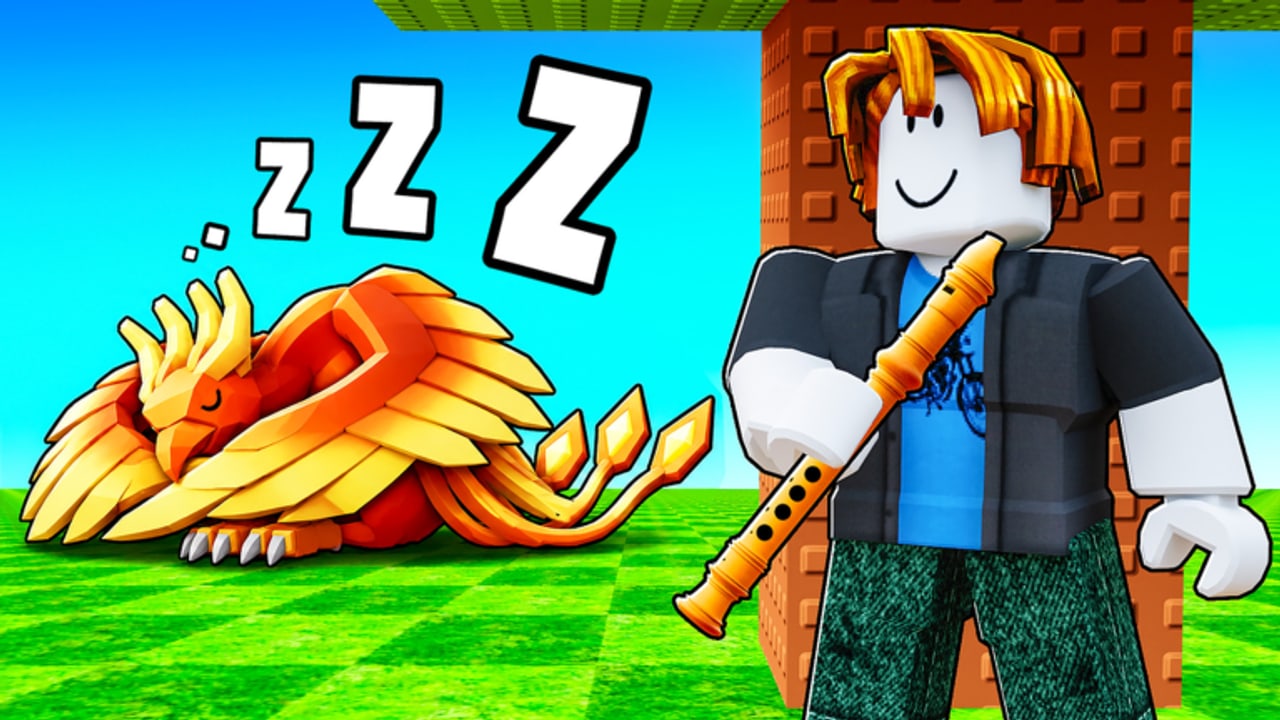
Redeeming Wake Up An Animal codes happens inside the game, not on a random website. The official Roblox description still does not maintain a permanent public list, so this page focuses on the how: opening Shop, locating the premium/codes style entry, typing a community-reported phrase correctly, and sanity-checking the reward. For status philosophy and scam warnings, keep the Codes Hub open in another tab.
Developer FixEyeGames ships a Shop that also surfaces VIP, cash, and lucky offers beside the redeem entry. Do not confuse a Robux purchase button with the text field that accepts promo phrases.
Before you start
- Launch the official experience (place ID
122281262593872) from the Wiki Hub link. - Finish enough of the orange tutorial that UI buttons respond—see Getting Started if menus feel locked.
- Disable noisy overlays that cover Shop.
- Decide what you will spend rewards on: breath, instruments, or a buffer for Offline Cash.
- Accept that a phrase which worked in a YouTube recording may already be dead.
Step-by-step redeem flow
1. Open Shop
Look for the Shop button on your HUD after spawning. On some devices the icon sits near other economy panels. If you cannot find it, re-check Controls and try another server—five-player instances occasionally desync UI until rejoin.
2. Find the premium / codes entry
Community redeem demos show a dedicated field associated with premium or code redemption rather than the main cash purchase list. Scroll past VIP and lucky offer tiles until you see a text input. If the Shop was redesigned after an update, compare against the embedded video mid-page and against fresh creator shorts the same week.
3. Type the phrase exactly
Spacing and capitalization matter more than players expect. In a widely circulated VendoPlus-style demo, a short line similar to wake up was entered for a very large cash grant (on the order of tens of millions in that recording). Reproduce characters as shown on screen in a current video—do not trust wiki rumor chains that “improve” the string.
4. Confirm and watch your balance
Submit once. Wait for the cash (or other reward) popup. Spamming submit rarely helps and can soft-lock the field. If nothing happens, leave Shop, re-open, and try a careful second attempt. Two failures usually mean expired or wrong string—not a hidden third secret format.
5. Spend with a plan
Huge cash spikes tempt panic buying. Prefer:
- Breath upgrades that unlock safer play in Breath Training.
- A meaningful instrument step from Instruments.
- A leftover buffer so offline earnings matter tonight.
Cross-check ranks on the Instruments Tier List before dumping everything into a cosmetic-adjacent stick.
Video walkthrough
The embed on this page shows a real community redeem demonstration. Watch the Shop path, pause on the typed characters, then mirror them in your client. One video per page keeps focus—additional clips belong on other guides such as Getting Started.
Troubleshooting
| Problem | Likely cause | Fix |
|---|---|---|
| No code field | Tutorial lock or UI update | Progress onboarding; rejoin; compare newest video |
| Code fails | Expired / mistyped | Re-check spelling; stop after two tries |
| Reward smaller than video | Different balance, UI scale, or patched grant | Still spend wisely; videos are not contracts |
| Site asks for password | Phishing | Close it; only redeem in Roblox Shop |
| Friend sends loadstring “for codes” | Malware bait | Read Safe Script Use |
Mobile vs keyboard notes
On mobile, open Shop with a clean tap, then focus the text field before the on-screen keyboard covers confirm. On keyboard/mouse, click the field explicitly so chat does not steal input. Wake inputs like hold E are unrelated to redeem—do not hold E expecting codes to appear.
After Echo Chaos or other banners
Content drops such as Echo Chaos often coincide with Shop tweaks. Re-run this entire flow after patching even if you “already redeemed forever.” One-time flags and renamed buttons are common in young Roblox economies.
Also re-read the Updates Hub so you know whether animal count changes should redirect your spending toward new Zones instead of duplicate instruments.
Multiplayer courtesy
You can redeem while others play—the Shop is personal. Still, avoid AFK idling on the only tutorial sleeper while you hunt YouTube for strings. Five-player etiquette from the Players Hub applies.
What we will not do on this page
- Publish a fake “always working” code table.
- Invent extra phrases beyond careful community evidence.
- Send you to third-party redeem portals.
- Mix executor instructions into the Shop guide.
When more phrases are independently verified, they will surface first on the Codes Hub with dates and caveats. Until then, master this redeem path, keep expectations modest, and invest rewards into breath and luck the honest way.
Related links
Redeem in Shop, type precisely, re-test after patches, and let the cash fuel real progression—not phishing rabbit holes.
Frequently Asked Questions
Quick answers to the most common questions.
Where is the Wake Up An Animal code box?
Inside the in-game Shop, in a premium or codes text field near VIP/cash/lucky offers—not on an external website.
What code did community videos show?
A short phrase similar to wake up appears in a popular redeem demo for a large cash grant. Always re-test; it may expire.
Why did my code fail?
Expiry, typos, Shop UI changes, or already-claimed flags. Try twice carefully, then assume it is dead.
Can I redeem on mobile?
Yes. Open Shop, focus the text field, type precisely, and confirm. Watch for the on-screen keyboard covering the submit control.
Should I use a third-party redeem site?
No. Those sites often phish accounts. Only use the Roblox game Shop field.